# Log
The Grundfos Service portal makes it easy to log call-outs and allocate engineers to the job.
# Getting started
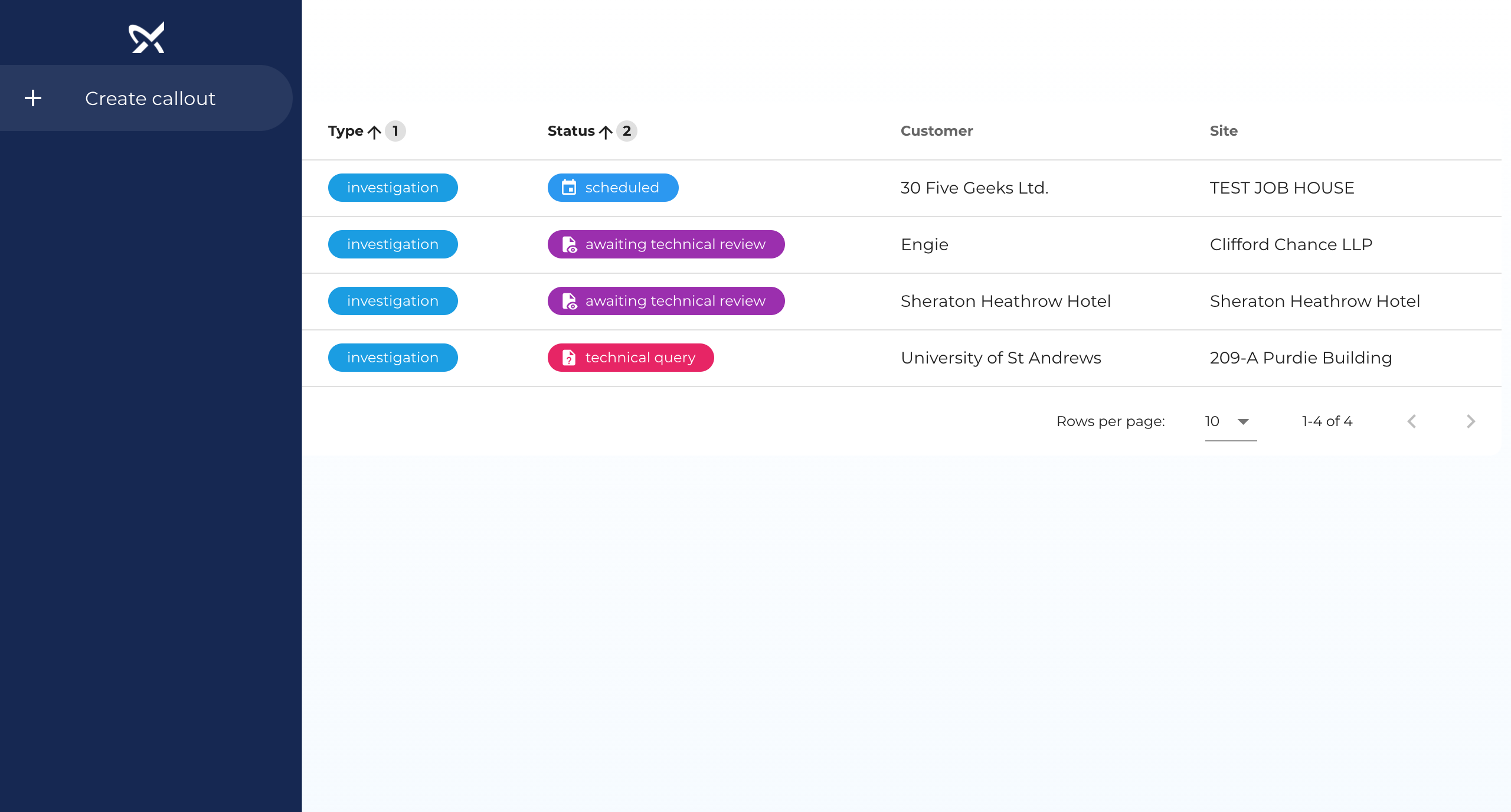
Navigate to the call-outs page on the portal (opens new window) and once the jobs load, click on the + Create callout option in the menu on the left-hand-side.
# Select a contract
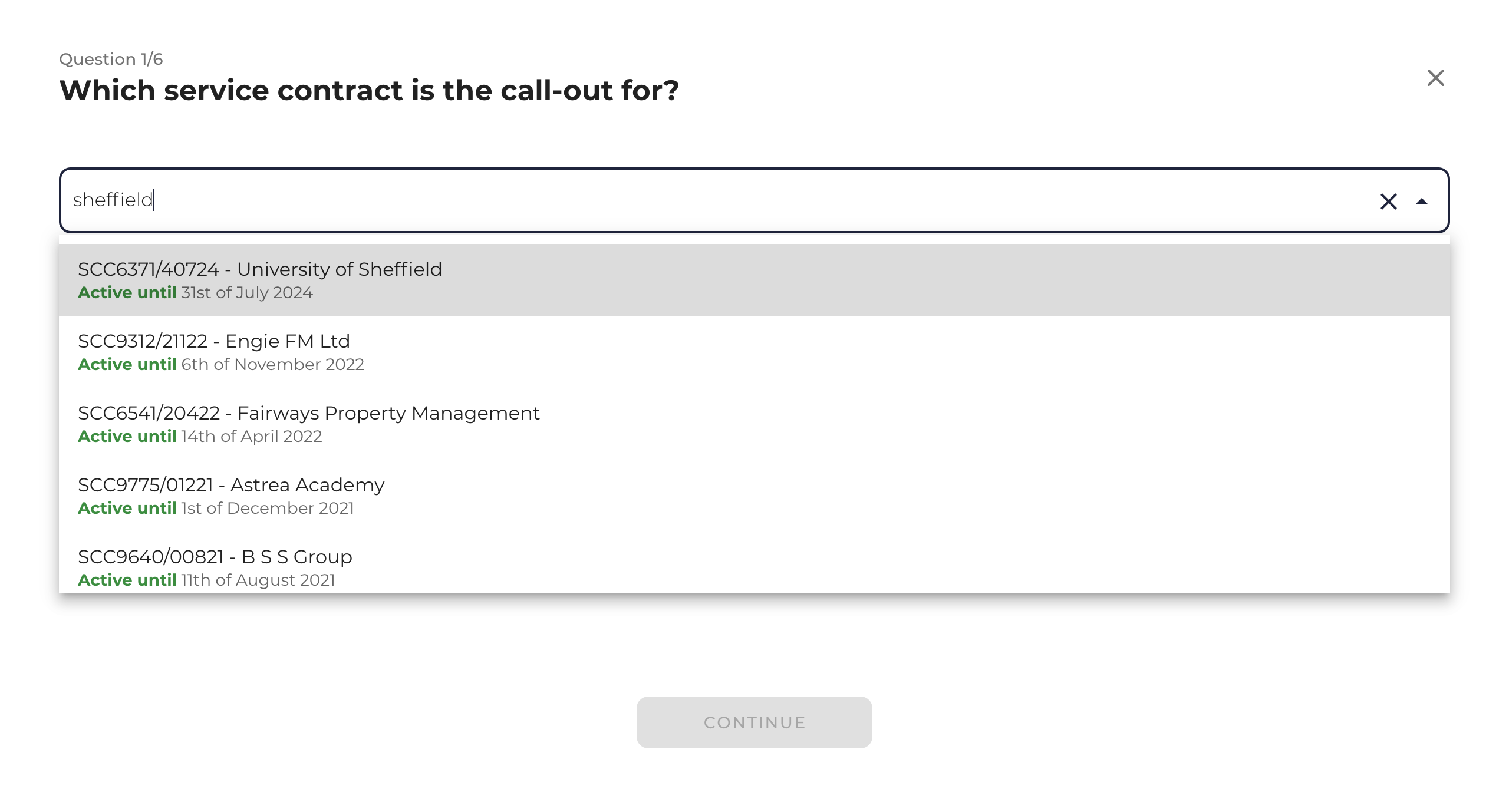
Search for a contract using details such as the site name, postcode or contract reference. Once you find it, select the contract and press continue.
# Select a site
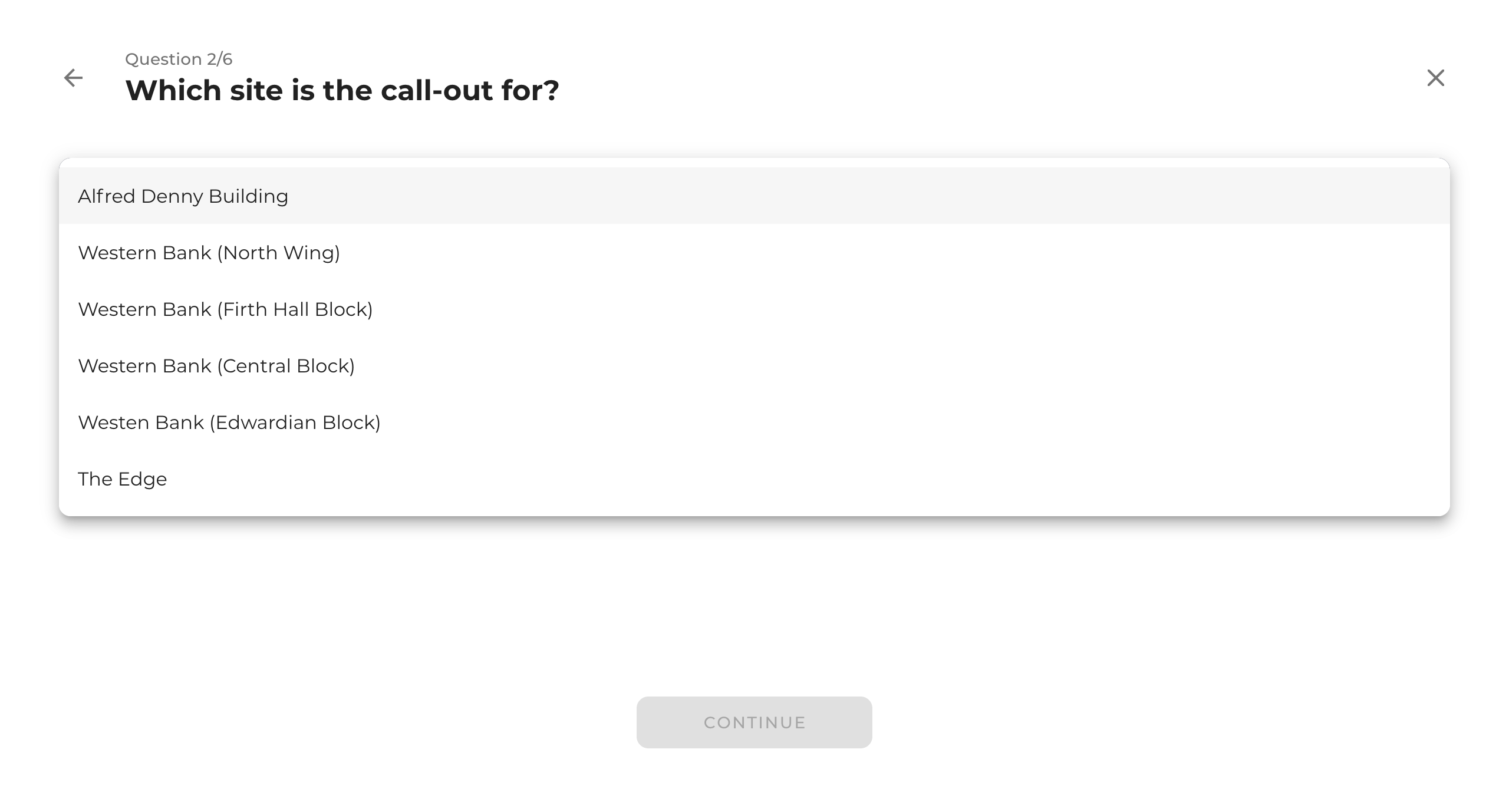
Expand the select field to see a list of all the sites under that contract. Find the relevant site and select it. Press continue.
# Select a piece of equipment
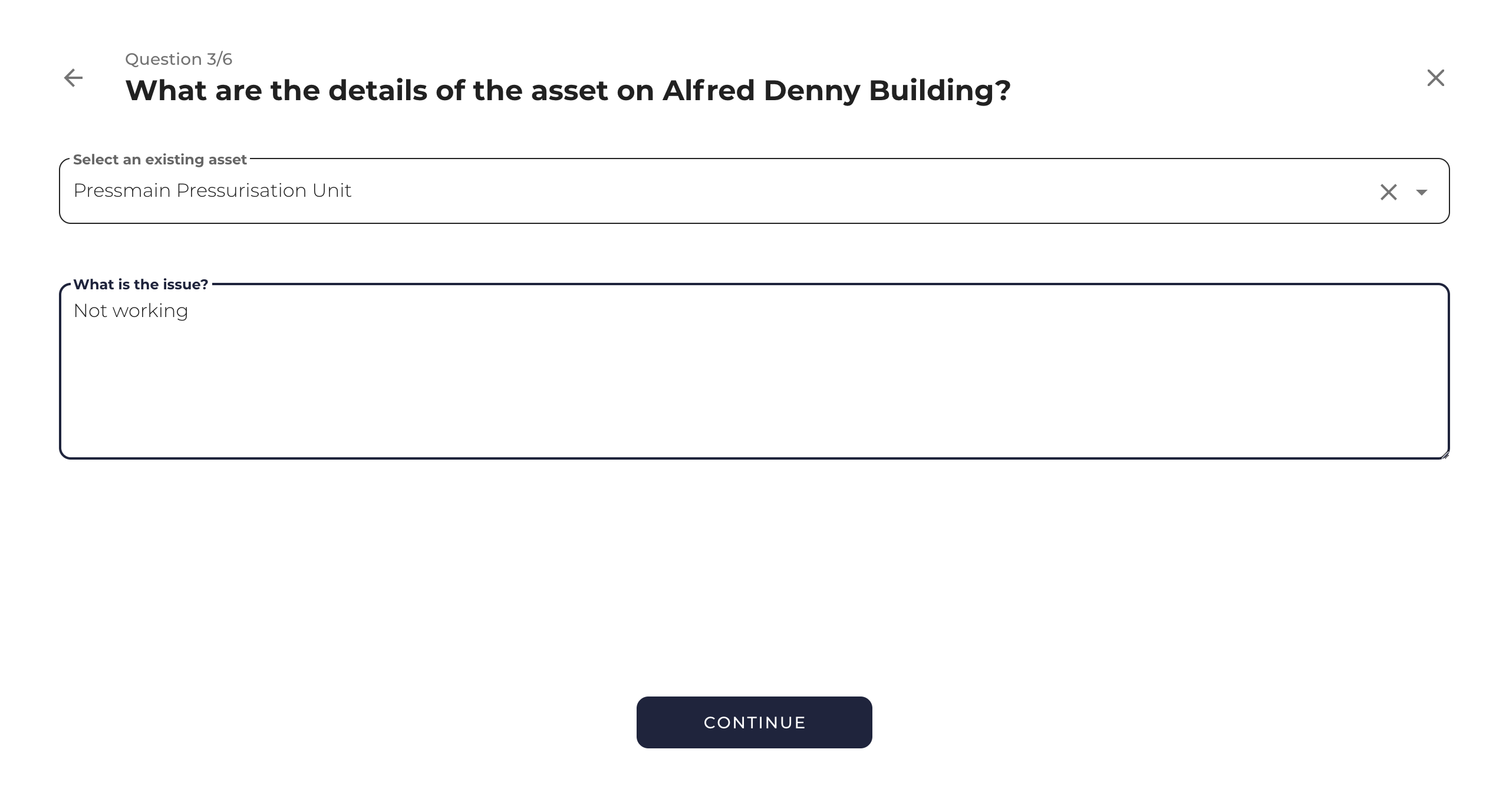
Expand the select field to see a list of all equipment in that site. Find and select the relevant equipment.
Then, enter a description of the problem the customer is reporting and press continue.
# Select or enter a site contact
If the site contact appears in this list, you can simply select it. Otherwise, click on the + button on the top-right to add a new contact.
Once you are done, press continue.
# Enter notes for the engineer
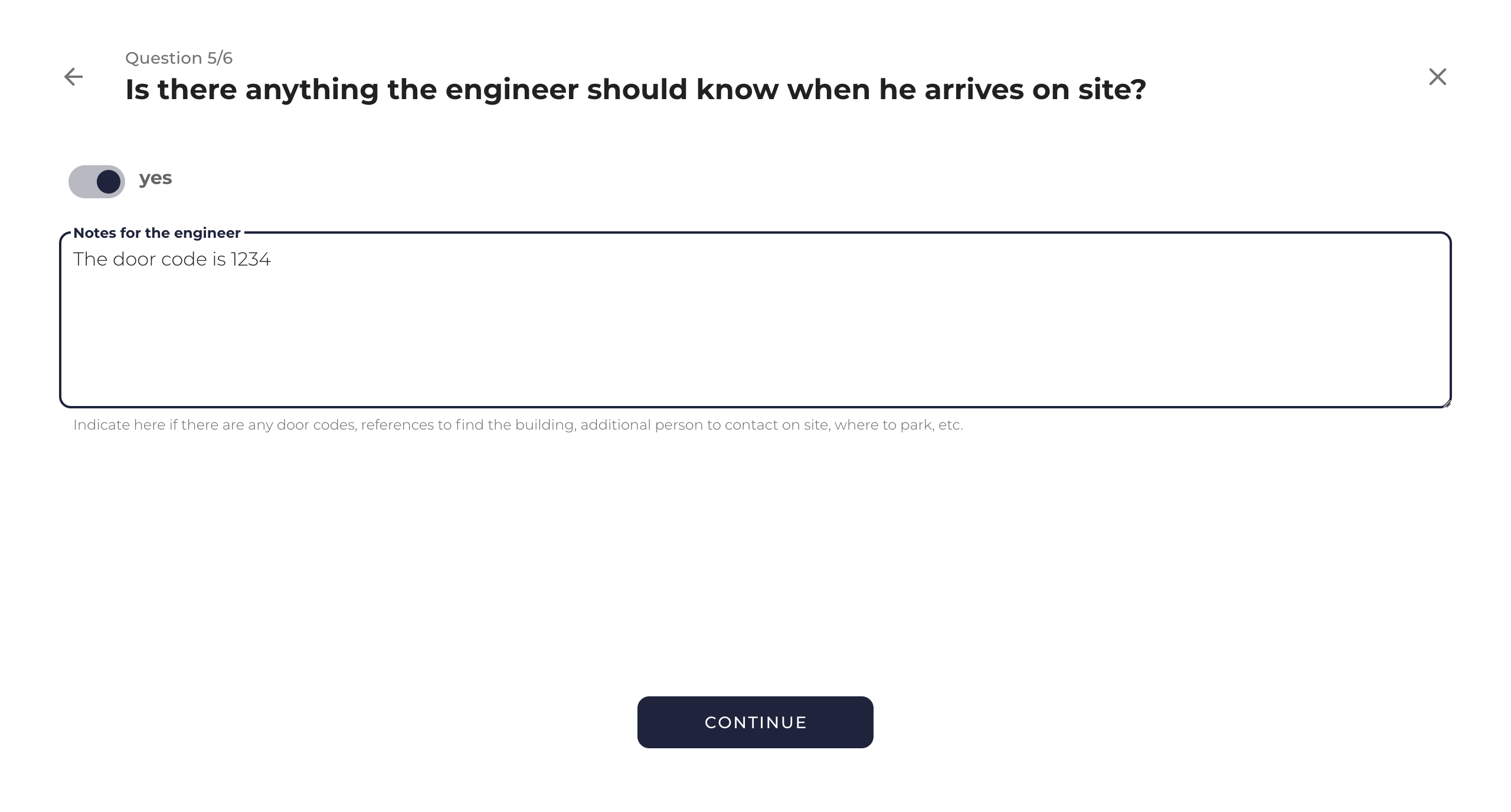
Enter here any notes indicating if there is anything the engineer should know before or after arriving on site. This is often used to tell the engineer about door codes, etc.
If there are no relevant notes for the engineer, just turn the switch at the top of the page to no.
# Select an engineer
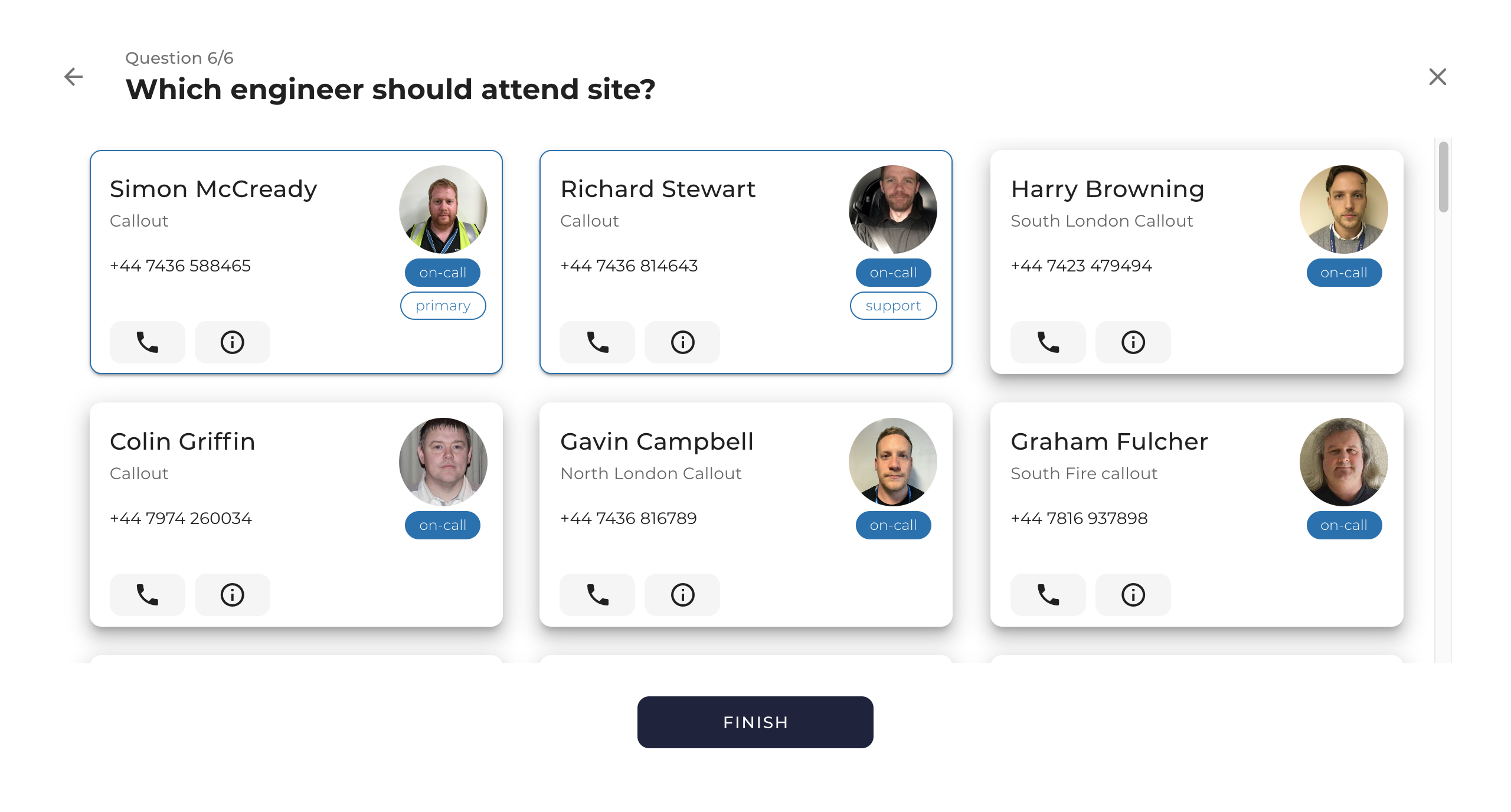
You will see listed first on this page all the engineers who are currently on call (i.e. see the blue on-call badge) as well as other engineers who are not on call.
Click on engineers to select or de-select them.
If required, you can select multiple engineers to attend the job. The first engineer selected will be the primary and other engineers will be support.
Once you have selected the relevant engineer(s), press finish.
# Exiting call-out logging
To exit the logging process without saving the job, just click on the x on the top-right.